Quickstart on Kubernetes
With this step-by-step guide kubriX with its default demo stack gets deployed on your preferred Kubernetes cluster.
Prerequisites
- check Prerequisites
- DNS-Provider which is supported by external-dns (see https://kubernetes-sigs.github.io/external-dns/latest/#new-providers )
- Kubernetes cluster with at least 4 CPU cores and 20 GB RAM
Installation steps
-
Create a dedicated organization (GitHub) or group (GitLab) for your kubriX repositories.
warningDo not create repositories under a personal GitHub account or in a personal GitLab namespace. kubriX uses the Argo CD
ApplicationSetSCM provider generator, which does not support personal accounts/namespaces. -
create new empty customer repo on your Git-Server (GitLab, GitHub, Gitea, ...). We fully tested this with GitHub, but others should also work.
warningIMPORTANT: the repo needs to be empty (also no initial README!!!)
-
create an access token for this new repo with write access
Instead of a newly created access token you can also use your personal access tokens, but this is not recommended since your personal access token has probably more permissions than needed.
If you create a fine-grained token on Github, these are the needed permissions:
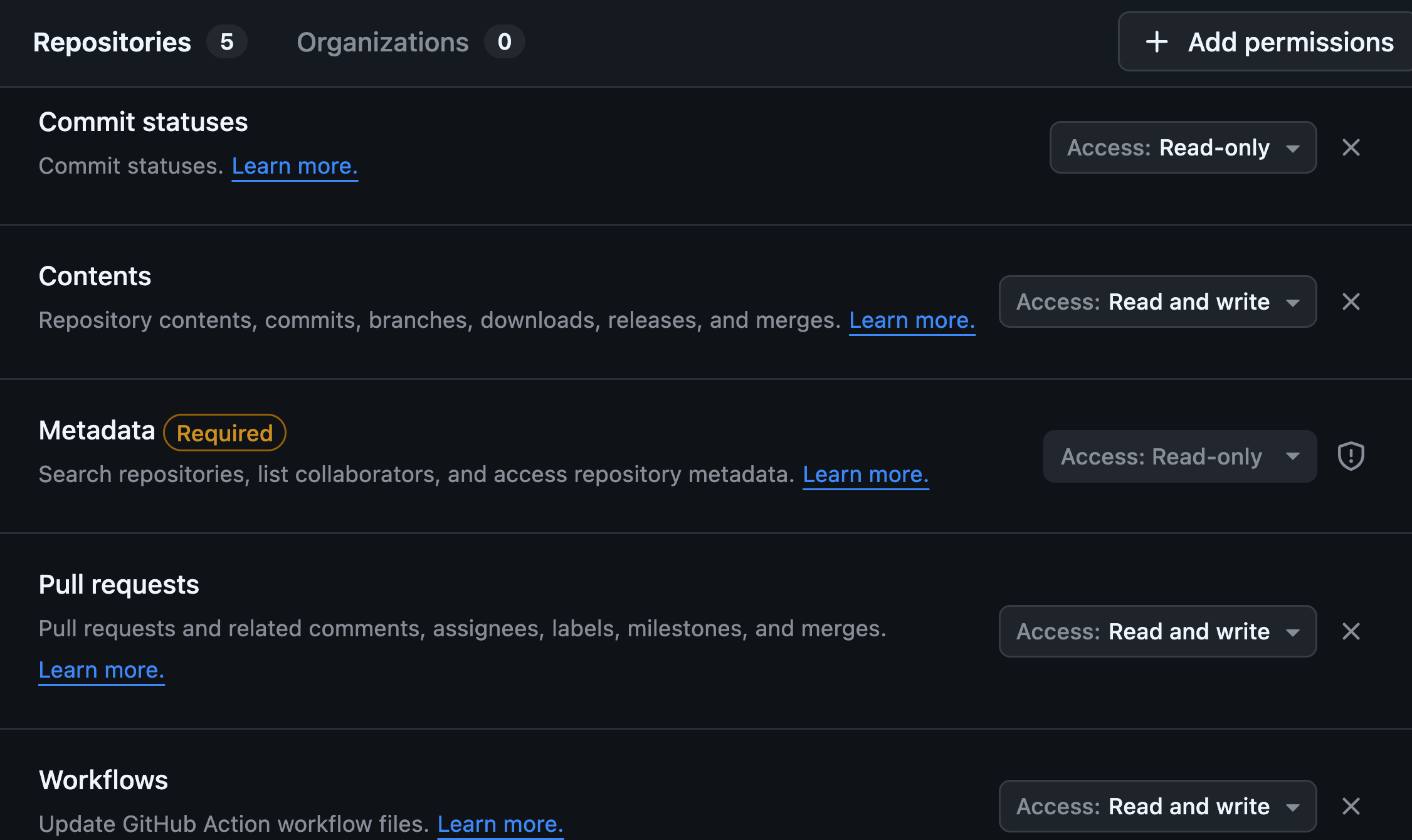
-
set the repo url and token in this variables like this:
export KUBRIX_REPO="https://github.com/kubriX-demo/kubriX-demo-customerXY"
export KUBRIX_REPO_PASSWORD="blabla" -
set your GitHub Username:
export KUBRIX_GIT_USER_NAME="your-github-username" -
optional: set the Cloud Provider, where kubriX gets installed:
infodefault: on-prem
supported: aks, peak, metalstackexport KUBRIX_CLOUD_PROVIDER="metalstack" -
optional: set the DNS provider, which external-dns should connect to.
infodefault: ionos
supported: ionos, aws, stackit, cloudflareexport KUBRIX_DNS_PROVIDER="ionos" -
optional: set the domain, under which kubriX should be available.
infoThis domain will be used by external-dns. Your provider in step 7 needs to be able to manage this domain with the credentials set in step 11.
If this variable is not set, a subdomain of "kubrix.cloud" is randomly created (for example "demo-2faf23d.kubrix.cloud")
export KUBRIX_DOMAIN="demo-johnny.kubrix.cloud" -
optional: set the kubrix target type which should be used
infoif this variable is not set, "kubrix-oss-stack" is used.
export KUBRIX_TARGET_TYPE="kubrix-oss-stack" -
create a new Kubernetes cluster and be sure that kubectl is connected to it.
tipcheck with
kubectl cluster-info -
provide external-dns secrets depending on your DNS provider
- ionos
- aws
- azure
- stackit
- cloudflare Codespaces
create a secret with your DNS api-key like this:
kubectl create ns external-dns
kubectl create secret generic ionos-credentials -n external-dns --from-literal=api-key='your-api-key'
create a credentials file like this:
[default]
aws_access_key_id = your-key-id
aws_secret_access_key = your-access-key
and then create the secret on the K8s cluster based on this credentials file:
kubectl create ns external-dns
kubectl create secret generic -n external-dns sx-external-dns --from-file credentials
setup Managed Identity using Workload identity - oidc issuer, managed identity, role assignment and federated identity credentials - and create azure.json file like this:
{
  "tenantId": "$TENANT_ID",
  "subscriptionId": "$SUBSCRIPTION_ID",
  "resourceGroup": "$AKS_RESOURCE_GROUP",
  "aadClientId": "$IDENTITY_CLIENT_ID",
  "useWorkloadIdentityExtension": true
}
and then create the secret on the K8s cluster based on this azure.json file::
kubectl create ns external-dns
kubectl create secret generic external-dns-azure -n external-dns --from-file azure.json
kubectl create ns external-dns
kubectl create secret generic external-dns-webhook -n external-dns --from-literal=AUTH_TOKEN='your-auth-token'
--from-literal=PROJECT_ID='your-project-id'
kubectl create ns external-dns
kubectl create secret generic cloudflare-api-key -n external-dns --from-literal=apiKey='YOUR_API_TOKEN'
-
If you need to prepare something else on your cluster before kubriX gets installed, do this now.
-
Create a
kubrix-installNamespace and a Secretkubrix-installer-secretsto configure the installer.tipSummary of all possible configuration options via the
kubrix-installer-secretsin Install Secrets Reference.kubectl create ns kubrix-install
kubectl create secret generic kubrix-install-secrets -n kubrix-install \
--from-literal KUBRIX_REPO=${KUBRIX_REPO} \
--from-literal KUBRIX_REPO_PASSWORD=${KUBRIX_REPO_PASSWORD} \
--from-literal KUBRIX_GIT_USER_NAME=${KUBRIX_GIT_USER_NAME} \
--from-literal KUBRIX_DOMAIN=${KUBRIX_DOMAIN} \
--from-literal KUBRIX_CLOUD_PROVIDER=${KUBRIX_CLOUD_PROVIDER} \
--from-literal KUBRIX_DNS_PROVIDER=${KUBRIX_DNS_PROVIDER} \
--from-literal KUBRIX_TARGET_TYPE=${KUBRIX_TARGET_TYPE} \
--from-literal KUBRIX_BOOTSTRAP=true \
--from-literal KUBRIX_INSTALLER=true -
Then apply the installer manifests:
kubectl apply -f https://raw.githubusercontent.com/suxess-it/kubriX/refs/heads/main/install-manifests.yamlThese manifests will create a Kubernetes Job which creates a clone of the upstream kubriX OSS repo with some customizations in your newly created repo and starts the installation on your Kubernetes cluster.
infoThis could take up to 30 minutes, depending how powerful your local environment is.
Especially Keycloak could take a while, since there are many resources created via Crossplane in different ArgoCD sync-waves. After 300 seconds the sync process gets terminated and restarted. This could happend sometimes and is not always indicating a problem. Also, sometimes the Keycloak app could be in temporary
Degradedstate during installation, but getsHealthyafterwards.tipYou can watch the logs of the job with
kubectl logs -n kubrix-install -f "pod/$(kubectl get pod -n kubrix-install -l "job-name=kubrix-install-job" -o jsonpath='{.items[0].metadata.name}')" --all-containers=true
Summary of all possible configuration options via the kubrix-installer-secrets:
Next steps
- Post-Installation steps
- Configuration Guide – customize kubriX for your needs
- User Guide – start deploying apps